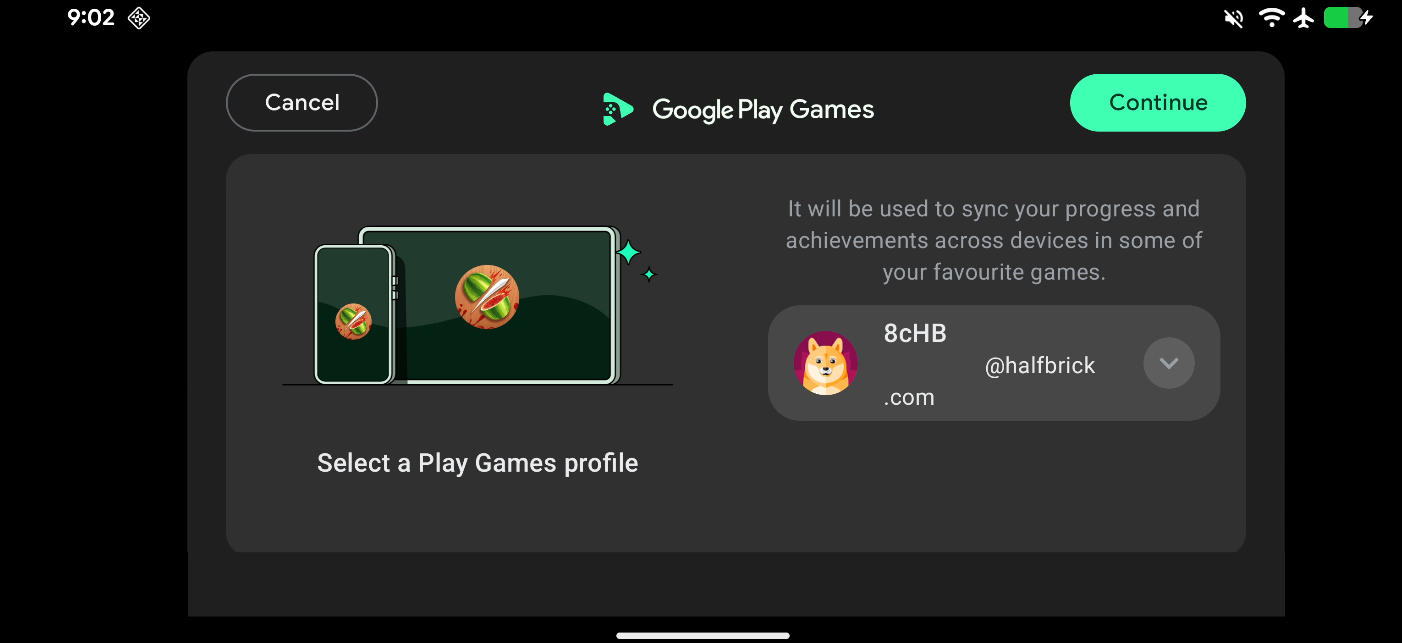
In order to link your Google Play account to Fruit Ninja on an Android device, you need to agree and continue when you see the following pop-up, this appears when launching the game:
Didn't Work? Troubleshooting Steps
First, make sure you have the latest version of Fruit Ninja by viewing the game on the Google Play Store.
Option 1: Clear App Data
- Visit the settings app of your device.
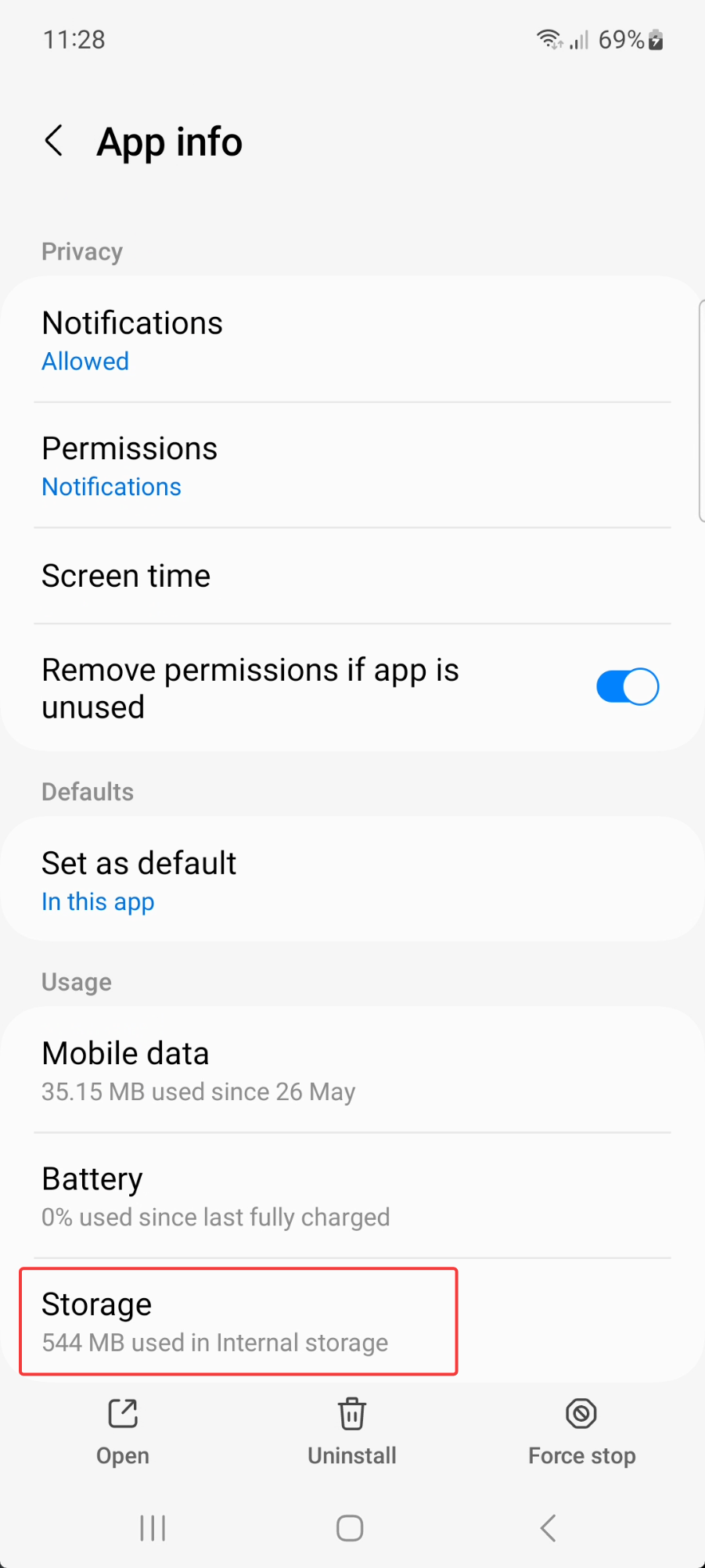
- Find the Apps list, to view installed apps. Find Fruit Ninja in this list.
- Select the Storage options.
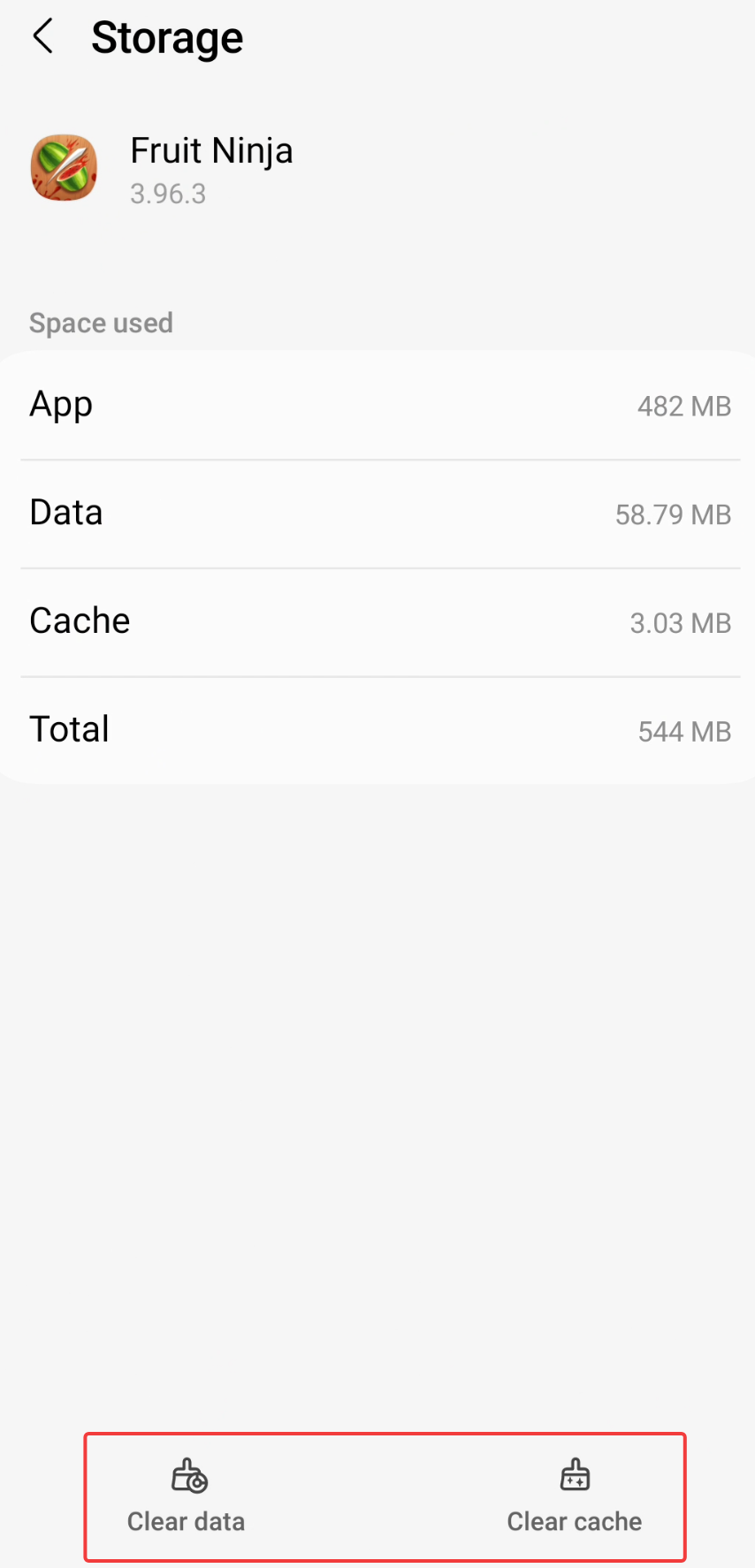
- Clear the app data.
- Return to the game, you should now be prompted to sign in with Google again.
Option 2: Reconnect to Google Play Games
You only need to try this if option 1 does not help.
Please install the Google Play Games app, to manage your account and troubleshoot connections to the game.
https://play.google.com/store/apps/details?id=com.google.android.play.games
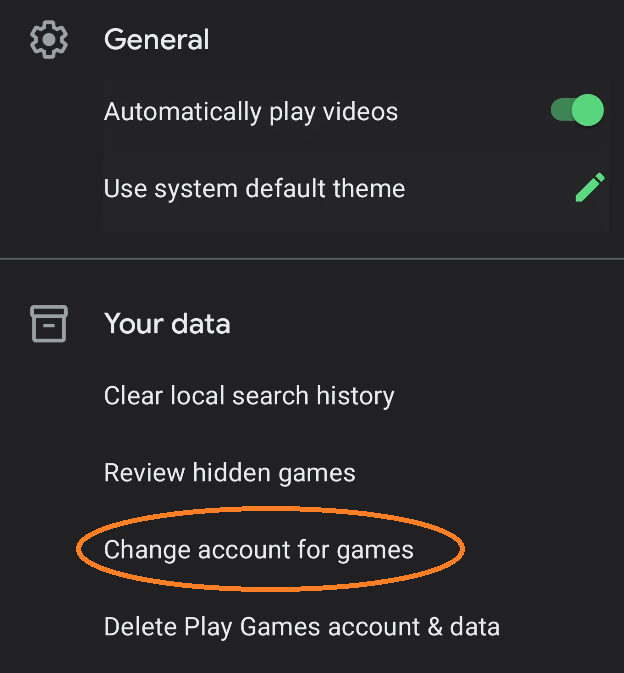
Once installed, select the settings menu in the Google Play Games app. Then, under Your Data, select "Change account for games".
Then, select Fruit Ninja in this list.
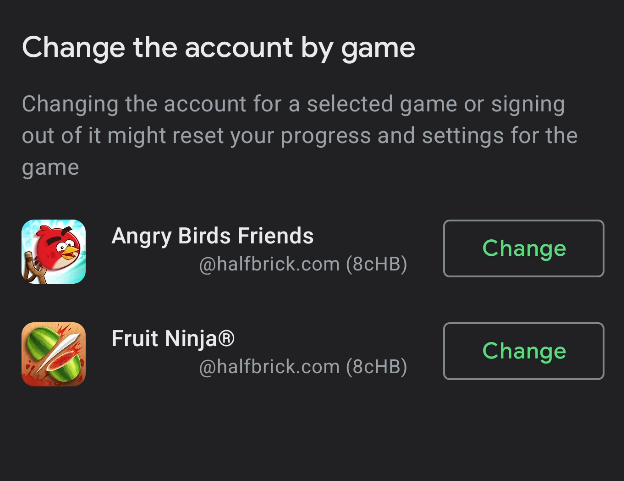
You can either change to another email, or, sign out, and back in to your desired account. After this, re-open Fruit Ninja, and the prompt will appear again to accept and continue. You must accept this prompt to access the League features.
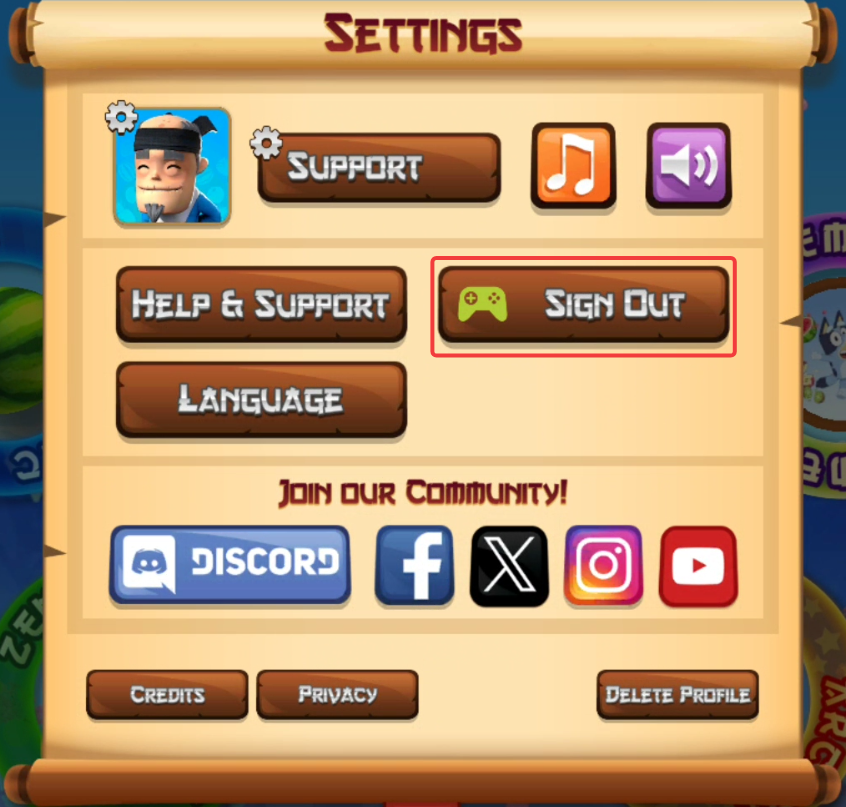
If you're signed in correctly, you should see this "sign out" opton, in the settings of the game: